CLI Reference
Install and authenticate the varsafe CLI, resolve context, and master the run/export workflows — plus the generated command reference.
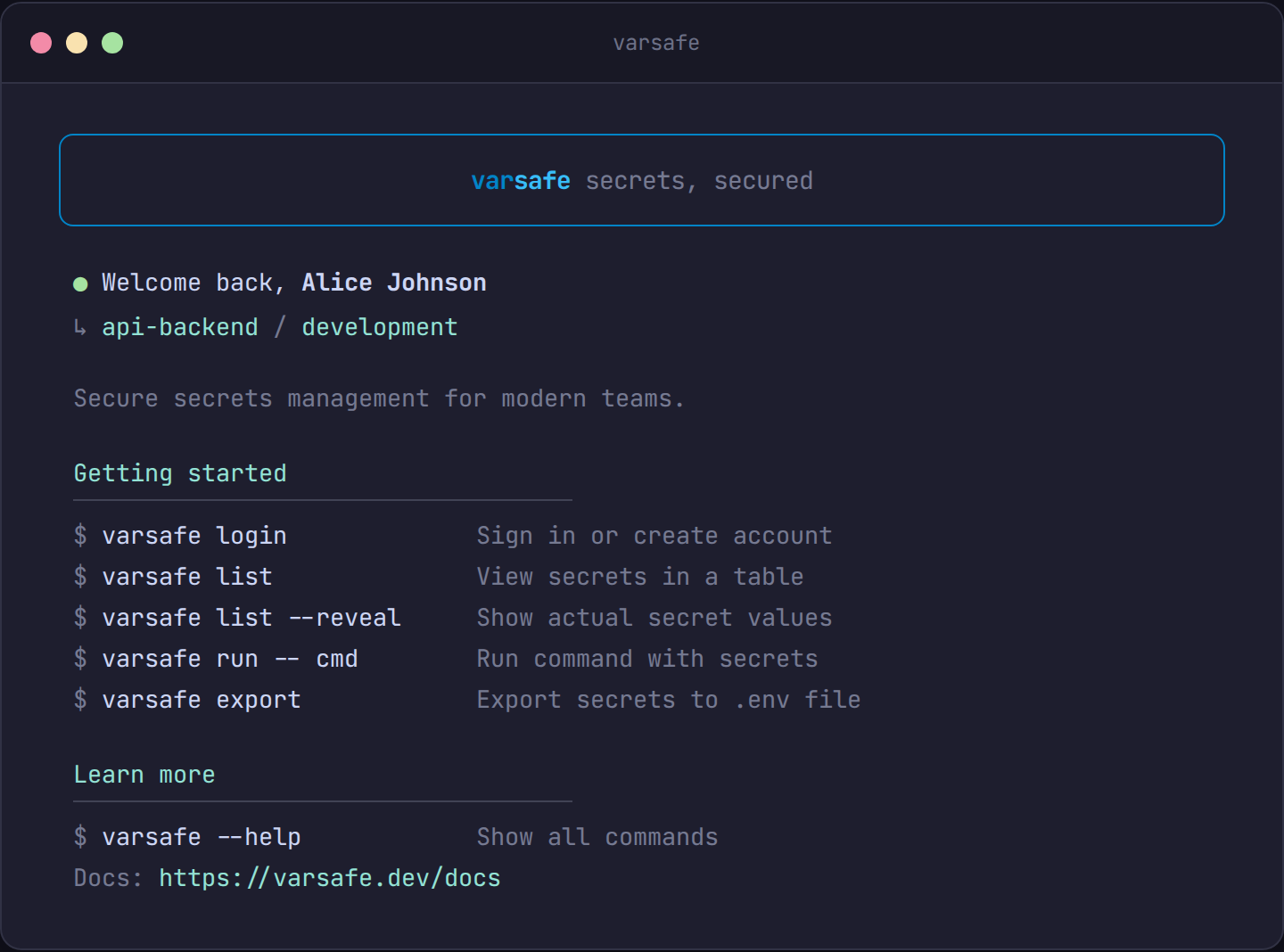
Installation
The CLI is a self-contained binary — it is not published on npm. Supported platforms: Linux and macOS on x64 and arm64, except Linux on arm64 (currently unsupported). Windows works via WSL.
curl -fsSL https://varsafe.dev/install.sh | bashThe installer downloads the binary to ~/.varsafe/bin and adds it to your shell’s PATH. Verify the install and explore the commands — no account needed:
# docs-test: offline
# Check the CLI is installed and explore its commands — no account needed.
set -euo pipefail

varsafe --version

varsafe --help

echo "OK:help"
To upgrade later, the binary updates itself:
varsafe updateCommands at a glance
The CLI has 11 flat commands — no nested subcommands:
| Command | Description |
|---|---|
login |
Authenticate with varsafe |
logout |
Revoke session and clear credentials |
whoami |
Display current authenticated user |
use |
Set default project and environment context |
list |
List secrets for a project/environment (alias: ls) |
get |
Print a single secret value to stdout |
set |
Set a secret in an environment |
unset |
Remove a secret from an environment |
run |
Run a command with secrets as environment variables |
export |
Export secrets to a file or stdout |
update |
Update the CLI to the latest version |
Every command and flag is documented in the generated reference at the bottom of this page.
Authentication
There are three ways to authenticate, from most to least interactive.
Browser login (default)
varsafe loginThe CLI opens your browser and prints a short, human-readable confirmation code in the terminal. Approve the request in the browser — after checking the code matches — and the CLI completes automatically via a server push, falling back to polling if the streaming connection drops. Your password never passes through the terminal.
Email and password
For machines without a browser:
varsafe login --no-browservarsafe login --no-browser --registerAPI token (CI and automation)
API tokens (created in the dashboard under team settings, prefixed vs_at_) are the non-interactive path. Four ways to supply one:
# The CLI picks the token up automatically — no login step needed
export VARSAFE_API_TOKEN="vsafe_example_ci_token"
varsafe run -- ./deploy.sh
varsafe login -t "vsafe_example_ci_token"# "-" reads the token from stdin — keeps it out of argv
secret-manager read varsafe-token | varsafe login -t -# Interactive masked input — never lands in shell history
varsafe login -TSession commands
varsafe whoami   # show the authenticated user and teams
varsafe logout   # revoke the session server-side and clear local credentials
Logout invalidates the session immediately — a stolen credentials file is useless afterward.
Environment variables
| Variable | Purpose |
|---|---|
VARSAFE_API_TOKEN |
API token for non-interactive auth — the primary CI variable |
VARSAFE_TOKEN |
Shorter alias for VARSAFE_API_TOKEN; also read by varsafe login -t |
VARSAFE_API_URL |
Overrides the API base URL (default https://api.varsafe.dev) — for self-hosted or test stacks |
Context
Commands that touch secrets need a project and environment. Resolution order:
- Flags —
-p/--projectand-e/--env(or-i/--project-idin automation) always win - Local
.varsafefile — found by searching from the current directory up to the git root - Global saved context — set via
varsafe use - Auto-selection when only one option exists; interactive prompt otherwise
# Set context — inside a git repo this writes a .varsafe file,
# elsewhere it saves globally
varsafe use -p my-api -e development

# View the current context
varsafe use

# Clear it
varsafe use --clear
This tested script removes a secret and exercises the context lifecycle:
# docs-test: local-stack
# Remove a secret and manage the saved context.
set -euo pipefail

varsafe login --token "$VARSAFE_TOKEN" --api-url "$VARSAFE_API_URL"
varsafe use -p "$VARSAFE_PROJECT" -e development

varsafe set TEMP_FLAG "true"
varsafe unset TEMP_FLAG

# Context can be cleared at any time; commands then need -p/-e flags
varsafe use --clear
varsafe list -p "$VARSAFE_PROJECT" -e development

echo "OK:unset-and-context"
Inject secrets into a process
varsafe run is the core workflow: it fetches secrets over TLS and injects them as environment variables into the child process. Nothing is written to disk; when the process exits, the secrets are gone.
varsafe run -- npm run devThe command after -- is executed argv-exact — no shell re-parsing, so quoting is preserved and arguments arrive in the child process exactly as you wrote them. Status messages (“Injecting 5 secrets”) go to stderr, so stdout stays clean for piping.
Narrow what gets injected:
# Only secrets matching glob patterns (comma-separated)
varsafe run --include 'VITE_*,CRISP_*' -- bun run build

# Filter by prefix and inject with PREFIX_ prepended
varsafe run --prefix monitoring -- ./run-monitoring.sh
Merge in an encrypted .env file — file values win over API values, and the flag can be repeated:
varsafe run --env-file .env --env-file .env.local -- npm startThe tested version, including the child process assertion:
# docs-test: local-stack
# Inject secrets into a child process as environment variables — no file
# is ever written to disk.
set -euo pipefail

varsafe login --token "$VARSAFE_TOKEN" --api-url "$VARSAFE_API_URL"
varsafe use -p "$VARSAFE_PROJECT" -e development

varsafe set API_KEY "vsafe_example_run_inject_value"

# The child process sees API_KEY; your shell never does.
varsafe run -- sh -c 'test -n "$API_KEY"'

# Only inject secrets matching a pattern
varsafe run --include 'API_*' -- sh -c 'test -n "$API_KEY"'

echo "OK:run-inject"Read a single value
For piping one secret into another tool, varsafe get prints just the value:
# Use a secret inline without exposing it in your shell profile
psql "$(varsafe get DATABASE_URL)"

# Exact bytes, no trailing newline — for tools that are byte-sensitive
varsafe get SIGNING_KEY -n > /dev/shm/key

# Structured output: {key, value, version, updatedAt}
varsafe get DATABASE_URL --json
Export secrets to a file
When a tool insists on a file, varsafe export writes one. The .env format is encrypted by default: the file starts with a #@varsafe/v1/ek_<id> header identifying the environment key, and each value is individually encrypted (varsafe:v1:...). Encrypted .env files are readable only by your team — safe to commit — and are decrypted on the fly by varsafe run --env-file.
# Encrypted .env (default)
varsafe export -o .env

# Plaintext requires an explicit opt-in
varsafe export --plain -o .env

# Other formats: dotenv (env), docker, kubectl, json, yaml —
# auto-detected from the output file extension, or forced with -f
varsafe export --plain -o secrets.json
varsafe export --plain -f yaml

# Write to RAM-backed tmpfs (/dev/shm) so the file never touches disk
varsafe export --plain --tmpfs -o app.envThe tested export flow, covering the encrypted default, --plain, and format variants:
# docs-test: local-stack
# docs-test-allow-plaintext
# Export secrets when a file is genuinely required. The default .env export
# is encrypted; --plain is an explicit opt-in.
set -euo pipefail

varsafe login --token "$VARSAFE_TOKEN" --api-url "$VARSAFE_API_URL"
varsafe use -p "$VARSAFE_PROJECT" -e development

varsafe set SMTP_HOST "smtp.example.com"

workdir="$(mktemp -d)"
trap 'rm -rf "$workdir"' EXIT

# Encrypted .env (default) — values are unreadable without your team keys
varsafe export -o "$workdir/.env"
grep -q '#@varsafe/v1/' "$workdir/.env"

# Plaintext requires an explicit flag
varsafe export --plain -o "$workdir/plain.env"
grep -q 'SMTP_HOST=' "$workdir/plain.env"

# Other formats: json, yaml, docker
varsafe export --plain -f json -o "$workdir/secrets.json"
varsafe export --plain -f yaml -o "$workdir/secrets.yaml"

echo "OK:export-formats"
CI/CD usage
For pipelines, set VARSAFE_API_TOKEN from your CI secret store — no varsafe login step is required:
name: Deploy

on:
  push:
    branches: [main]

jobs:
  deploy:
    runs-on: ubuntu-latest
    steps:
      - uses: actions/checkout@v4

      - name: Install varsafe CLI
        run: curl -fsSL https://varsafe.dev/install.sh | bash

      - name: Deploy with secrets
        run: varsafe run -p my-api -e production -- ./deploy.sh
        env:
VARSAFE_API_TOKEN: ${{ secrets.VARSAFE_API_TOKEN }}deploy:
stage: deploy
script:
- curl -fsSL https://varsafe.dev/install.sh | bash
- varsafe run -p my-api -e production -- ./deploy.sh
variables:
VARSAFE_API_TOKEN: $VARSAFE_API_TOKENExit codes
| Code | Meaning |
|---|---|
| 0 | Success |
| 1 | Authentication failed |
| 2 | Network error |
| 3 | Validation error |
| 4 | Resource not found |
| 5 | Permission denied |
| 99 | Internal error |
varsafe run is an exception: once the child process starts, run exits with the child’s exit code, so wrappers and CI steps behave as if the command ran directly.
Uninstall
To remove varsafe from your system:
# Remove the binary and local data
rm -rf ~/.varsafe
Then remove the PATH entry from your shell configuration:
# Edit ~/.zshrc and remove the line:
# export PATH="$HOME/.varsafe/bin:$PATH"
# Edit ~/.bashrc and remove the line:
# export PATH="$HOME/.varsafe/bin:$PATH"# Edit ~/.config/fish/config.fish and remove:
# fish_add_path ~/.varsafe/binIf you used varsafe use in any project directories, you can also delete the .varsafe context files in those repositories.
Troubleshooting
Authentication required
varsafe loginYour session may have expired. Log in again to re-authenticate. In CI, check that VARSAFE_API_TOKEN is set and the token hasn’t been revoked or expired.
Project not found
The project name might not match. Check what the CLI can see:
# If you have only one project, it's auto-selected
varsafe list

# Or set context interactively
varsafe use
Permission denied
Your role might not have write access to this environment. Check:
- Is the environment protected? Only owners and admins can write to protected environments; viewers can’t read them at all — see roles.
- Are you a member of the correct team?
- Contact your team admin to verify your role.
No context set
Set your project context first:
varsafe use -p my-project -e developmentCommand not found after install
The installer adds ~/.varsafe/bin to your shell config. Restart your terminal, or add it manually:
export PATH="$HOME/.varsafe/bin:$PATH"Remember that Linux on arm64 is not supported — the installer refuses that platform.
Command reference
Generated from the CLI’s own --help output — always matches the shipped binary.
varsafe login
Authenticate with varsafe
varsafe login [options]| Option | Description |
|---|---|
--api-url <url> |
API URL (default: “https://api.varsafe.dev”) |
--dashboard-url <url> |
Dashboard URL (default: “https://varsafe.dev”) |
--no-browser |
Use email/password instead of browser auth |
--register |
Register a new account (email/password mode) |
-e, --email <email> |
Email address (email/password mode) |
-p, --password <password> |
Password (email/password mode) |
-n, --name <name> |
Name (for registration) |
-t, --token <token> |
API token (use “-” to read from stdin). Also reads VARSAFE_TOKEN env var. For secure prompt, use –token-prompt. |
-T, --token-prompt |
Prompt for API token with masked input (does not leak to shell history) |
-f, --force |
Force re-authentication even if already logged in |
-h, --help |
display help for command |
varsafe whoami
Show the currently authenticated user
varsafe whoami [options]| Option | Description |
|---|---|
-h, --help |
display help for command |
varsafe logout
Sign out and clear local credentials
varsafe logout [options]| Option | Description |
|---|---|
-h, --help |
display help for command |
varsafe list
Alias: ls
List secrets for a project and environment
varsafe list|ls [options]| Option | Description |
|---|---|
-p, --project <name> |
Project name |
-i, --project-id <id> |
Project ID (for CI/automation) |
-e, --env <environment> |
Environment (e.g., development, staging, production) |
-r, --reveal |
Show actual secret values |
--json |
Output as JSON |
-h, --help |
display help for command |
varsafe run
Run a command with secrets as environment variables
varsafe run [options] <command...>| Option | Description |
|---|---|
-p, --project <name> |
Project name |
-i, --project-id <id> |
Project ID (for CI/automation) |
-e, --env <environment> |
Environment (e.g., development, staging, production) |
--prefix <prefix> |
Filter secrets by prefix and inject with PREFIX_ prepended (e.g., –prefix monitoring) |
--include <patterns> |
Comma-separated glob patterns to filter which secrets get injected (e.g., –include “VITE_,CRISP_”) |
--env-file <path> |
Load secrets from encrypted .env file (can be repeated) |
-h, --help |
display help for command |
varsafe export
Export secrets to a file or stdout (env format encrypts by default, use –plain to disable)
varsafe export [options]| Option | Description |
|---|---|
-p, --project <name> |
Project name |
-i, --project-id <id> |
Project ID (for CI/automation) |
-e, --env <environment> |
Environment (e.g., development, staging, production) |
-o, --output <file> |
Write to file instead of stdout (format auto-detected from extension) |
-f, --format <format> |
Override serialization: dotenv (.env), docker, kubectl, json, yaml (default: dotenv) |
--plain |
Skip encryption and output plaintext values |
--tmpfs |
Write to /dev/shm/ (RAM-backed tmpfs) |
-h, --help |
display help for command |
varsafe get
Print a single secret value to stdout (pipe-friendly)
varsafe get [options] <key>| Option | Description |
|---|---|
-p, --project <name> |
Project name |
-i, --project-id <id> |
Project ID (for CI/automation) |
-e, --env <environment> |
Environment (e.g., development, staging, production) |
--json |
Output {key, value, version, updatedAt} as JSON |
-n, --no-newline |
Do not append a trailing newline (exact byte output for piping) |
-h, --help |
display help for command |
varsafe set
Set a secret in an environment
varsafe set [options] <key> <value>| Option | Description |
|---|---|
-p, --project <name> |
Project name |
-i, --project-id <id> |
Project ID (for CI/automation) |
-e, --env <environment> |
Environment (e.g., development, staging, production) |
-h, --help |
display help for command |
varsafe unset
Remove a secret from an environment
varsafe unset [options] <key>| Option | Description |
|---|---|
-p, --project <name> |
Project name |
-i, --project-id <id> |
Project ID (for CI/automation) |
-e, --env <environment> |
Environment (e.g., development, staging, production) |
-h, --help |
display help for command |
varsafe update
Update varsafe CLI to the latest version
varsafe update [options]| Option | Description |
|---|---|
-h, --help |
display help for command |
varsafe use
Set default project and environment for commands
varsafe use [options]| Option | Description |
|---|---|
-p, --project <name> |
Project name |
-e, --env <environment> |
Environment (e.g., development, staging, production) |
--clear |
Clear the current context |
-h, --help |
display help for command |